Bastion Login with Entra ID to Access Azure VMs with MFA

The VM access always a pain point in Enterprise environments, mostly when we talk about productive environments. Until now, the username and password were the primary method for accessing Azure VMs, but ITSecurity teams did not like this approach. The good news is that now we can use Entra ID authentication to log in to Azure VMs via Bastion, which is a more secure and convenient method. In this post, I will show you how to set up Bastion login with Entra ID to access your Azure VMs.
Prerequisites
Before we start, make sure you have the following:
- An Azure subscription with the necessary permissions to create and manage resources.
- An Azure VM that you want to access via Bastion.
- Entra ID user accounts that you want to use for logging in to the VM.
- An Azure Bastion host deployed in the same virtual network as your VM.
What you need to do
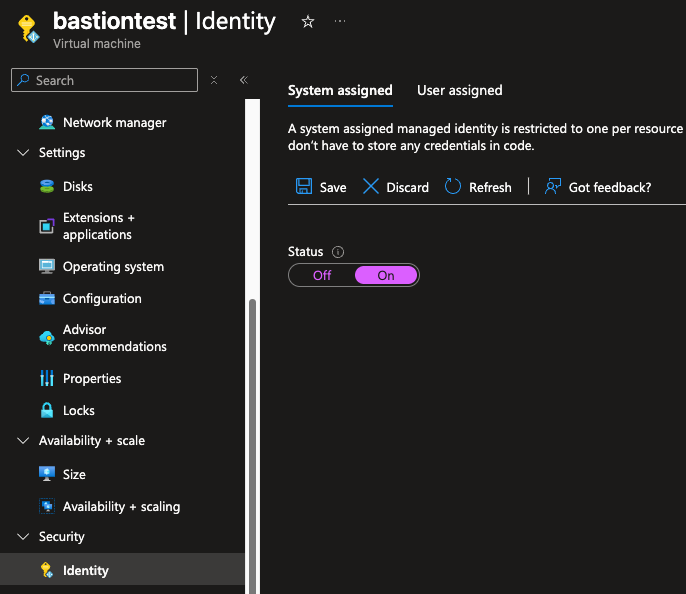
1, Enable system assigned managed identity for your Azure VM.
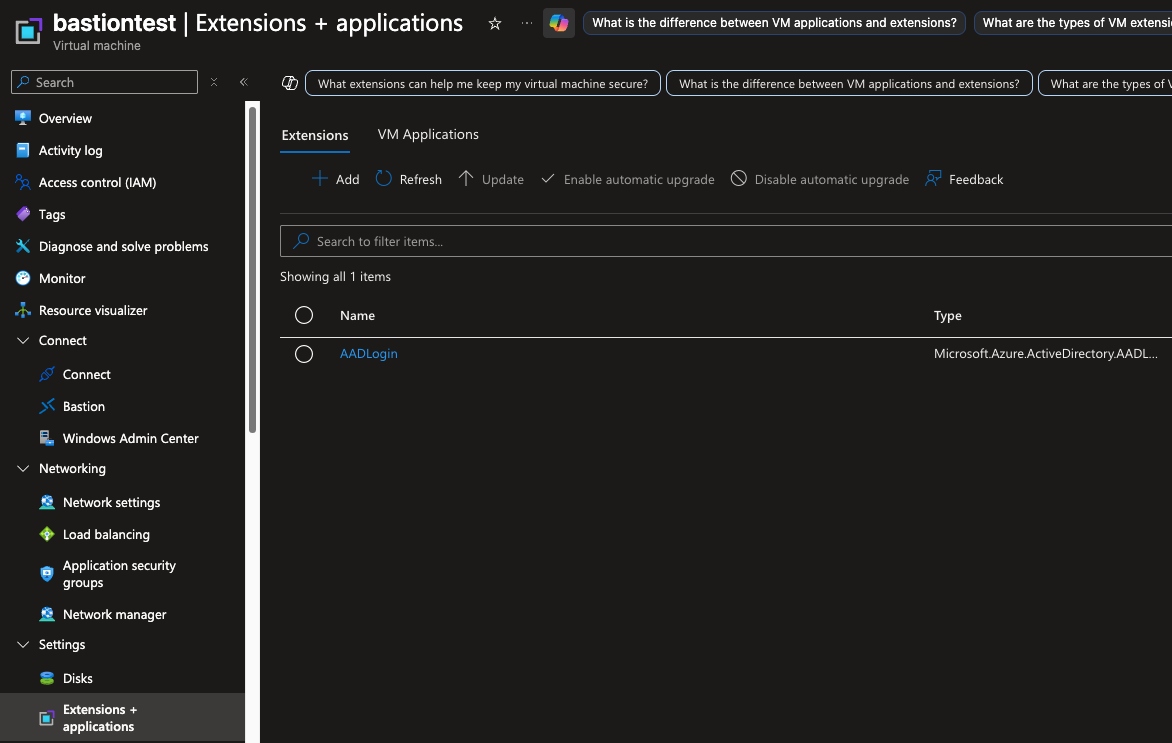
2, Enable AADLogin extension for your Azure VM.
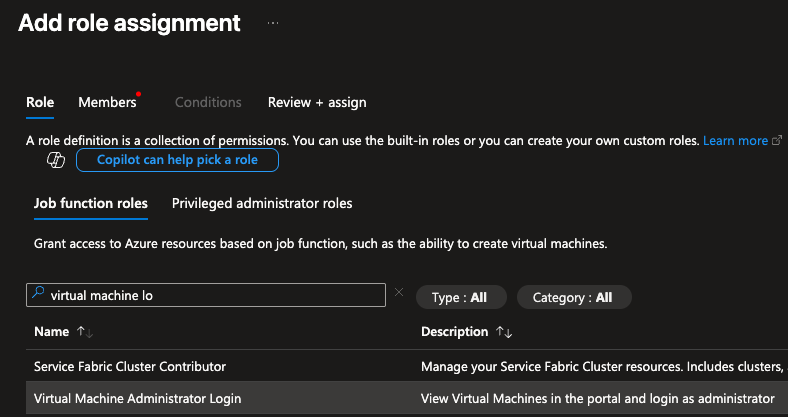
3, Assign the “Virtual Machine Administrator Login” role to the Entra ID users or groups that you want to use for logging in to the VM.
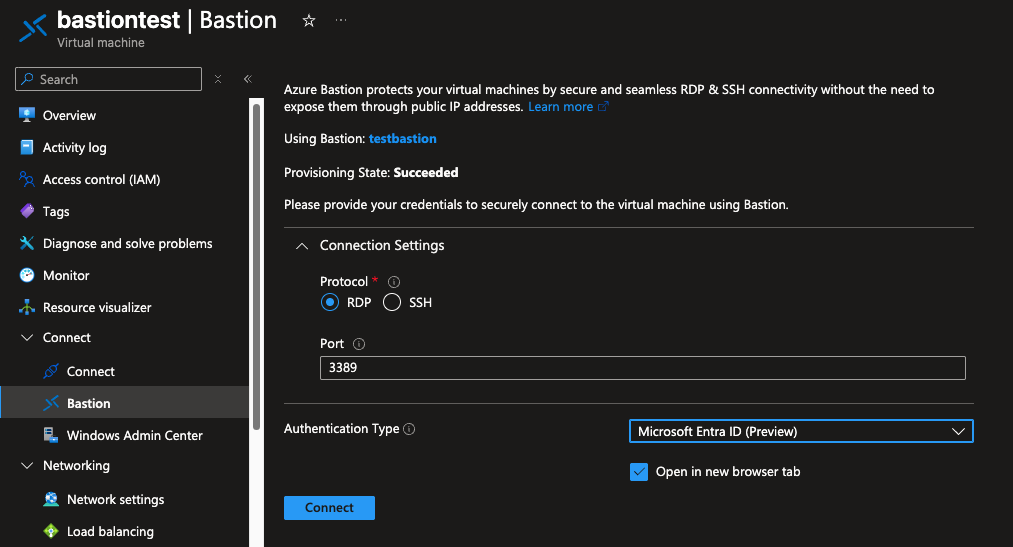
4, Connect to the VM using Azure Bastion and select “Use Azure Active Directory” option.
Conclusion
And thats it! You can now log in to your Azure VM using your Entra ID credentials WITH MFA if you want, which is a much more secure way to access your VMs. This method eliminates the need for managing and rotating passwords, and it also provides better auditing and compliance capabilities. I hope this guide helps you to set up Bastion login with Entra ID for your Azure VMs.