Restrict MFA registration to compliant devices — Entra Conditional Access
To restrict Multifactor Authentication (MFA) registration so it can only be completed from managed, trusted devices, create a Microsoft Entra Conditional Access policy that targets the “Register security information” user action and requires devices to be marked as compliant (Intune). This prevents users from enrolling authentication methods from unmanaged or non-compliant devices.
Why this helps
- Limits MFA registration to devices that meet your compliance rules (e.g., device health, encryption, patching).
- Reduces attack surface from BYOD or unmanaged endpoints during credential recovery or MFA setup.
- Simple trusted locations for MFA registration without complex network configurations.
Check the current activity view first to see recent registration attempts and events: Entra Authentication Methods Activity
If you see something like this: 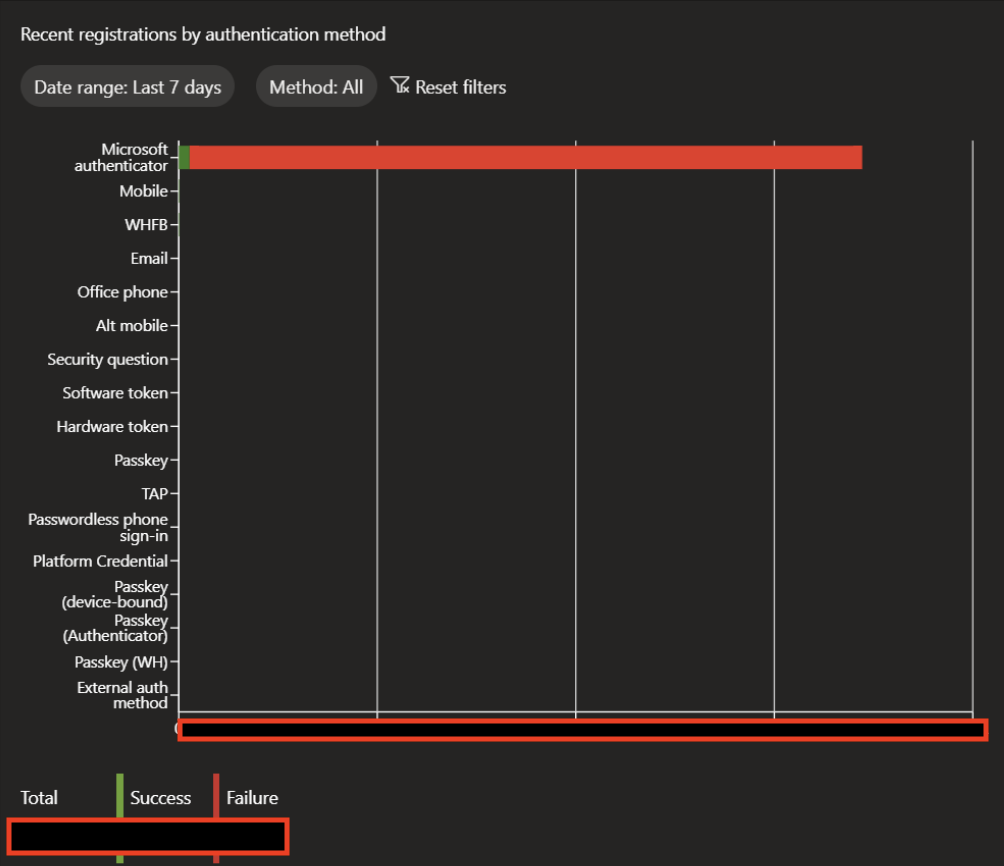 … than you have to implement the policy below.
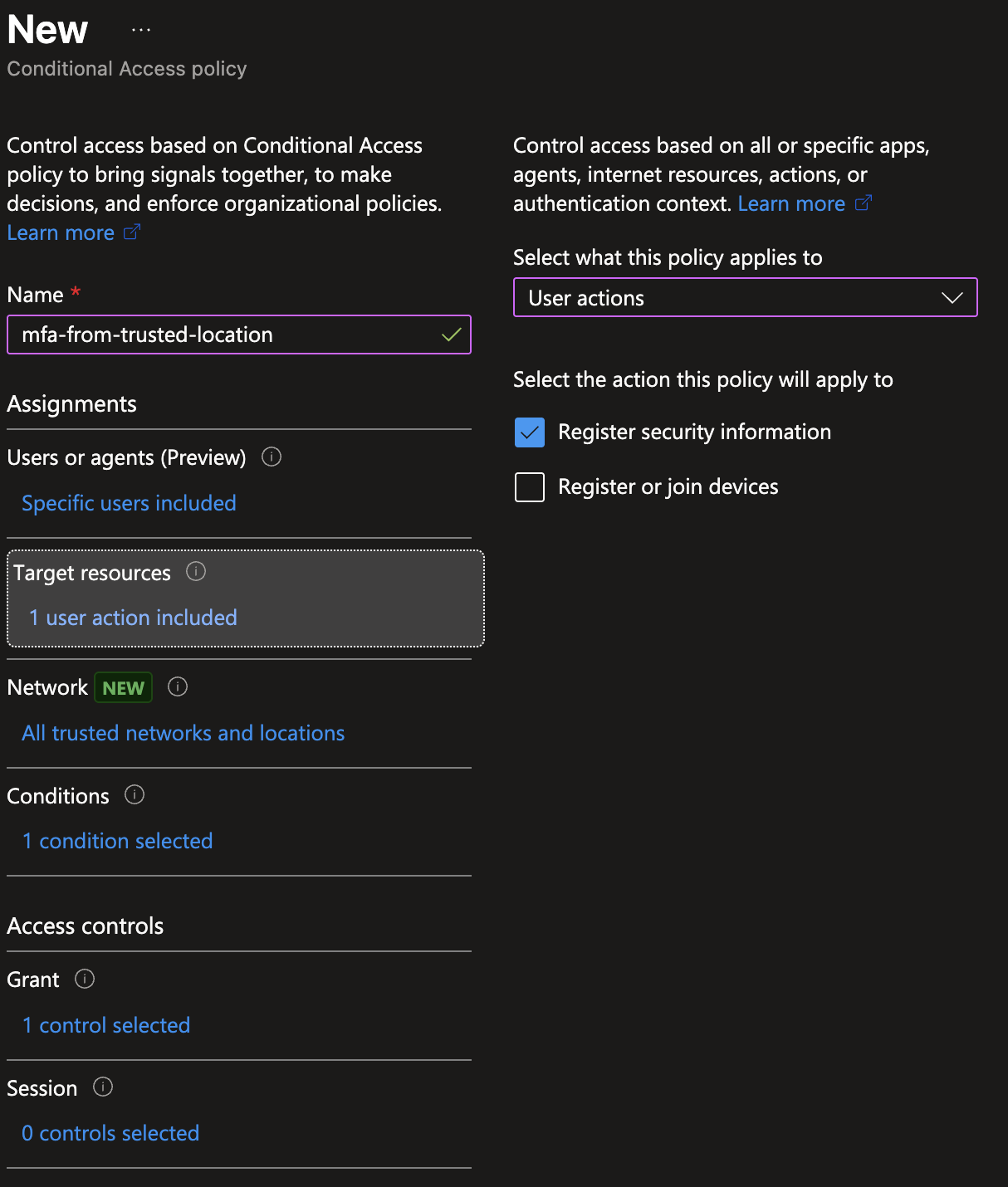
Conditional Access policy configuration (step-by-step)
- Users: Select the relevant users or groups you want to control (start with a pilot group).
- Target Resources -> User Actions: Select
Register security information(this targets the MFA/Authentication Methods registration UX). - Conditions -> Device State: Include all device states (or specifically target non-compliant devices to block them). If you prefer explicit filtering, configure to include devices that are not compliant and exclude compliant ones.
- Access Controls -> Grant: Select Grant access and check Require device to be marked as compliant.
- Policy Enforcement: Set the policy to On (start in Report-only if you want to monitor impact first).
Notes and testing
- Ensure devices are evaluated for compliance by Intune and that the Intune connector is healthy.
- Test with a pilot user on a compliant device — they should be able to reach the registration page and complete setup.
- Test with an unmanaged/non-compliant device — registration should be blocked by the Conditional Access policy.
Operational tips
- Use a staged rollout: create the policy and enable it for a small pilot group first.
- Use the Authentication Methods activity blade (link above) and Conditional Access sign-in logs to observe blocked and allowed registration attempts.
- If users need temporary exceptions, consider a limited break-glass account not subject to the policy.
References
This post is licensed under CC BY 4.0 by the author.